 USB Camera


View
Live preview from USB UVC and RTSP cameras. Connect your source and see what matters.
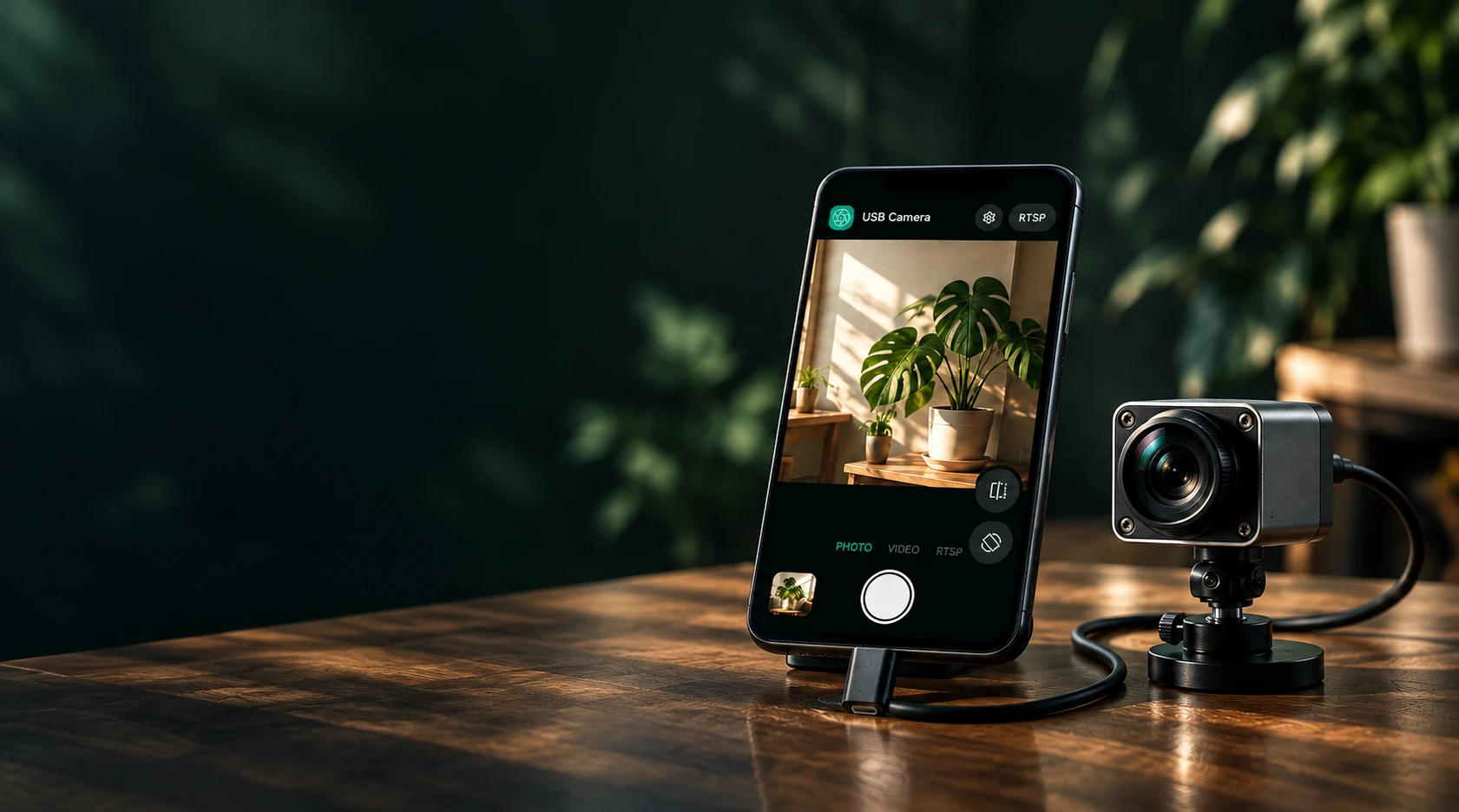
Connect a USB UVC or RTSP camera to your Android phone. Watch live, capture photos and video from USB, and stream either source to your own RTMP/RTMPS service.
Android 8.0+ · No sign-up · Driver-free plug and play
USB UVC and RTSP preview, USB capture, and RTMP/RTMPS streaming. From watching live to sharing and broadcasting, bring your external camera’s capabilities to your phone.
Live preview from USB UVC and RTSP cameras. Connect your source and see what matters.

USB photos and HD local recording, subject to device capabilities, with phone microphone or no sound.

Send USB or RTSP video to your chosen RTMP/RTMPS service.
USB UVC · RTSP · RTMP / RTMPS
USB webcams, UVC endoscopes and borescopes, USB microscopes and other standard UVC cameras. If a camera works on a computer without installing a driver, it will usually work here. Use your phone as a bigger screen for inspection, repair and close-up work.
Connect a standard UVC camera or compatible UVC endoscope via OTG, allow USB access, and view live video on your phone.
Enter an RTSP camera address to connect, watch or disconnect. RTSP supports preview and streaming; use a USB camera for photos and local recording.
Mirror horizontally or rotate 180° to suit your camera mounting. USB photos and local recordings use the selected orientation.
Save the current USB camera frame as a photo and view it in the app. Photos stay in app-specific storage and are not automatically added to the system gallery.
Record USB video at the selected resolution, subject to camera and phone encoder capabilities. Use the phone microphone or record silently. HD recording is currently available during the free Pro trial.
Stream a connected USB camera to a custom RTMP or RTMPS address, optionally with phone-microphone audio. Start or stop whenever you need.
Relay H.264 or H.265 RTSP video and available audio to an RTMP/RTMPS service. H.265 is passed through without video transcoding and requires a compatible destination.
View elapsed time, average bitrate, sent bytes and packets, and the last write time. Failure and interruption messages help you check the connection and restart.
Save, select and delete multiple RTSP camera and RTMP/RTMPS destination addresses. Addresses are encrypted on your device for reuse.
View photos and play videos in the app. Select multiple items or all items, delete in batches, and share files through Android’s system share sheet.
Open a saved photo to add arrows, circles, boxes, freehand lines and text, or crop it. The result is saved as a new picture and the original is kept. Markup is currently available during the free Pro trial.
View the USB device name and current image resolution. Get guidance for permissions, busy devices, unsupported formats, power and network issues. Capture stops when USB is unplugged.
Follow the system or choose from 12 languages. View the app version, privacy policy and terms, and check for updates in Settings.
USB requires an Android phone with USB Host / OTG, a suitable adapter, and a standard UVC camera. Compatible UVC endoscopes use the same connection; proprietary protocols and non-UVC capture devices are not supported.
For cameras needing more power, try a powered USB hub. USB 3-only cameras may not work with USB 2-only phones. Resolution depends on device formats, bandwidth and phone capabilities.
Your phone must be able to reach the RTSP camera with a valid address and credentials. Streaming requires your own reachable server and network. RTMPS encrypts the connection; RTMP is not encrypted.
Standard UVC (driver-free) USB cameras and UVC endoscopes. Most cameras that work on a computer without installing a driver will work.
Devices that need the maker’s own app (such as some Wi-Fi endoscopes or proprietary cameras) and special cameras like thermal imagers. Capture card support depends on the model.
Search for “OTG” in system Settings and turn it on, make sure the adapter or cable supports OTG, then re-plug and allow access in the prompt. If it still doesn’t work, email us your phone and camera model: camnow.team@gmail.com
Tap RTSP in the top-right corner and enter the camera’s RTSP address, for example rtsp://user:[email protected]:554/stream. You’ll find it in the camera’s manual or the maker’s app. Your phone must be on the same network.
In the app’s own gallery, where you can share or export them to other apps. Uninstalling the app deletes them, so export anything you want to keep first.
USB Camera needs no account and doesn’t sync your media to any cloud. USB photos and recordings stay on your Android device. Media goes to another app or server only when you share or start streaming.
Firebase usage analytics and crash diagnostics help improve stability. These events do not upload photos, videos, microphone audio, complete camera addresses or streaming keys. For details, see the Privacy Policy.